The Best Way to Download YouTube Video in 1080p
YouTube hosts countless valuable resources, from art lectures to business presentations. But streaming is not always practical, as connections drop, ads interrupt, or videos disappear. That is why having a dependable YouTube 1080p video downloader matters: it lets you save videos in Full HD for offline viewing anytime.
Why Download YouTube Videos in 1080p?
Some videos work fine at lower resolutions, but others are defined by detail. Consider an art-history lecture that zooms into brushwork, a conservator’s demonstration that reveals hairline cracks in glaze, or a design critique where small type and gridlines communicate intent. These scenes need 1080p so texture, micro-contrast, and thin lines remain clear when paused or replayed. The same applies to whiteboard math, scientific diagrams, CAD walkthroughs, and slide-heavy business briefings. Full HD preserves fidelity without ballooning file size, which makes it a practical default for long-term reference and repeated study.
Your Solution: Y2Doc
Most existing downloaders come with drawbacks such as intrusive ads, mandatory installation, or unstable video quality. Y2Doc focuses on the real situations above, saving detailed content quickly and cleanly, and keeps the process simple.
- MP4 download. Y2Doc supports MP4 video downloads in multiple resolutions, from 144p to 2160p/4k, with 1080p as the most popular option.
- MP3 conversion. If you only need the audio, you can convert the same video to MP3 without extra steps.
- Available on all devices. Because Y2Doc is web-based, you can use it on any device with any system, including but not limited to Windows, macOS, iOS, Android, or Linux, and it works the same way.
- Quick and reliable. Y2Doc processing a 3-hour video takes only 20 seconds.
In short, Y2Doc emphasizes clarity (1080p and above when available), format flexibility (MP4 or MP3), and zero-friction access (runs in the browser), which is exactly what you want when the subject matter is rich in detail.
Step-by-Step Guide to Download a YouTube Video in 1080p with Y2Doc
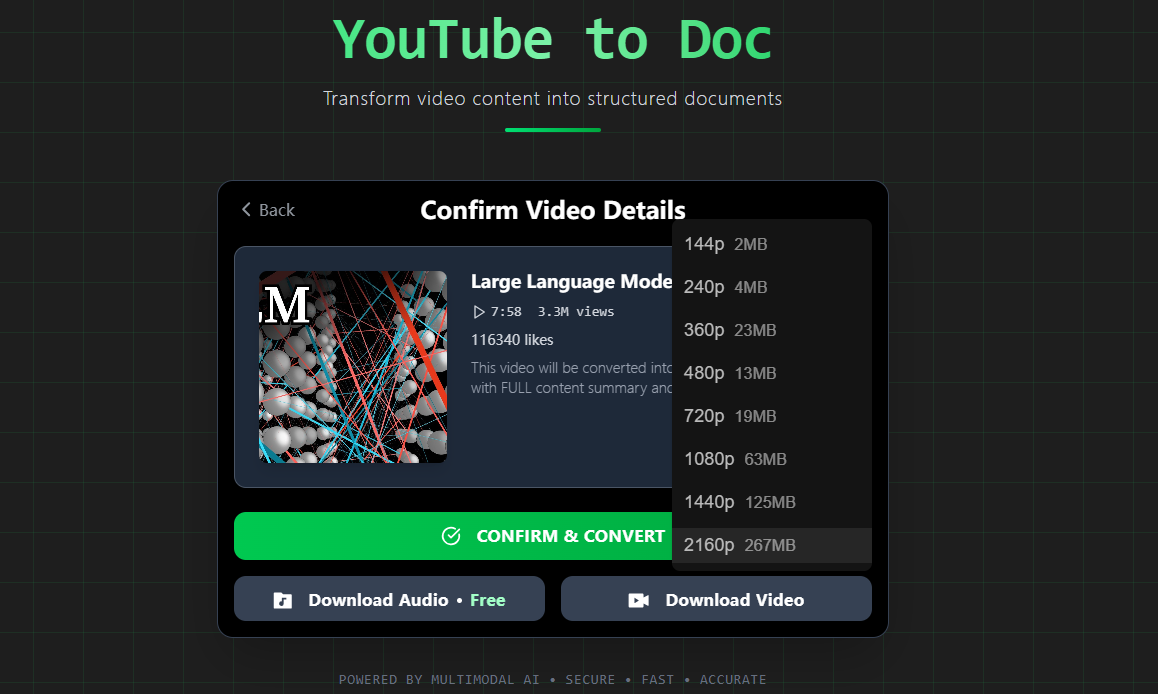
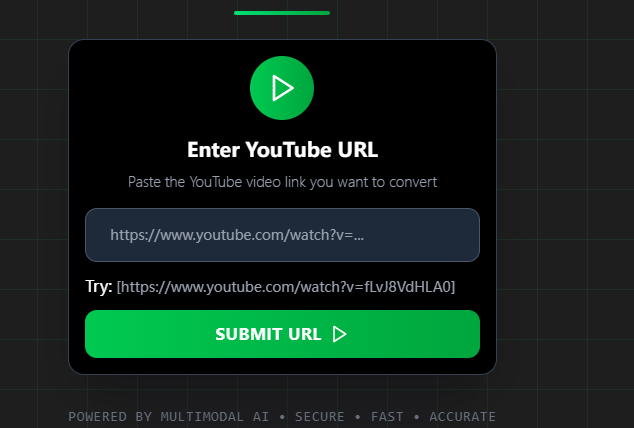
Step 1: Copy the URL of the YouTube video you want to save.
Step 2: Paste the URL into Y2Doc’s input field.
Step 3: Click “Submit URL**”** and wait for the video to be prepared.
Step 4: Click “Download Video” to select 1080p from the resolution list.
The same workflow applies to desktop and mobile browsers. If you later decide you only need the audio, for example, you want to listen to an exhibition talk while walking, repeat Steps 1–3 and pick Download Audio (MP3) instead.
More Than a Downloader: Y2Doc Adds Value
Downloading preserves fidelity, but learning benefits from structure. Y2Doc includes AI-powered modes that transform a long video into material you can review quickly.
-
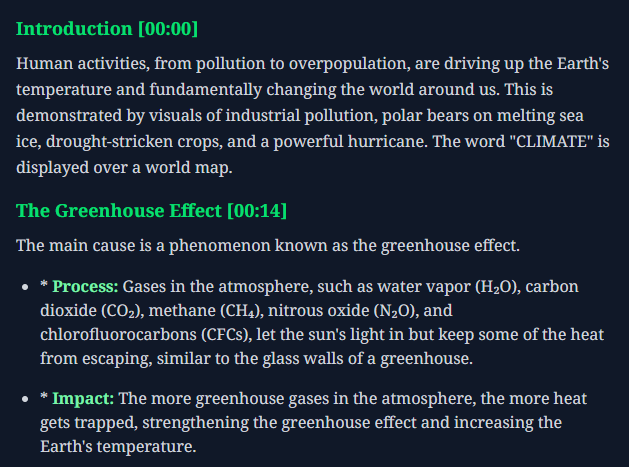
The Default transcript presents a structured transcript rather than a word-for-word transcript. It includes timestamps, section headings, and highlighted terms, which makes scanning for a particular technique or concept much faster.
-
In Conversation mode, speaker labels identify who says what in panel talks or interviews, while filler is removed so ideas remain clear.
-
Summary mode condenses long content into a compact outline for quick revision.
-
For creators and marketers, Article and Product Review modes shape the source into publishable formats.
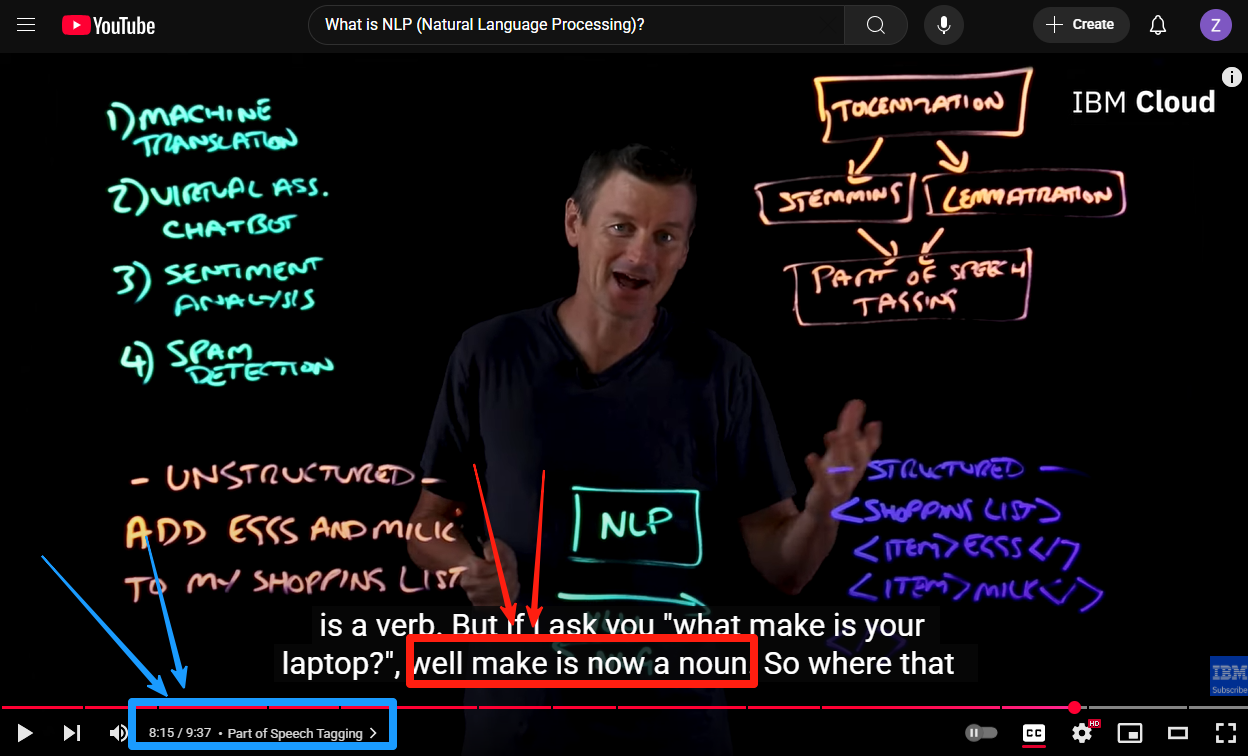
Across the above modes, you can optionally insert screenshots from the video into the transcript, which is useful for art details, slide snippets, or code panes that you want to capture alongside the text.
-
When you are done, you can export the results as TXT or PDF, or share them via a link or social platforms.
-
If you prefer to listen to the lecture again rather than read, AI Lecture can re-explain the video in a consistent voice and auto-generate slides to match. This is especially helpful for complex topics where a second, cleaner pass unlocks understanding.
Conclusion
When the value of a video lies in its details, artwork texture, microscopic annotations, slide fine print, or code in a small editor window, 1080p is the sensible default. A dependable YouTube video downloader ensures those details survive offline and stay ready when you need them. Y2Doc pairs that fidelity with format flexibility (MP4 or MP3) and an unusually practical set of AI tools that make material easier to digest and share.
When sharp detail and organized notes matter for your work or study, Y2Doc makes it easy to save your favorite YouTube videos in Full HD, and turn them into resources you can actually use.
FAQ
Is 1080p always available?
Availability depends on the source video’s uploaded resolution. If 1080p is provided by the creator, you can select it in Y2Doc. For videos that support higher quality, Y2Doc also allows downloads in 4K (2160p).
Will it work on my phone?
Yes. Y2Doc runs entirely in the browser, so the same steps apply on iPhone, Android, tablets, laptops, and desktops. There’s no app to install.
How long can the videos be?
Y2Doc supports videos up to 4 hours in length, which covers most lectures, podcasts, and performances available on YouTube.
Can I extract only the audio?
Yes. With one click, you can save the audio track as an MP3 file to keep lectures, talks, or music in a lightweight format without the video.
✍️ Editorial & Generation Note
This content was originally generated with the assistance of Y2Doc's AI to quickly extract and structure information from video sources. It has been carefully reviewed, edited, and verified by our human editorial team to ensure accuracy, safety, and helpfulness.